














Real run time
Setup and run timers come from the crew doing the work, not an estimate typed in afterward.
Sell + approve
 How it worksFollow one job from lead to paid
Product
Shops
Resources
Press time + job history
Start a run from the floor, count pieces, pause when the press pauses and log issues. That record stays on the job, so you can see exactly what each run took.
14 days of The Full Run free. No credit card.

Screen and ink details sit on the job next to the run record. On The Full Run, run time and consumables roll into job costing, so you can see what the labor on the floor really was.
Setup and run timers come from the crew doing the work, not an estimate typed in afterward.

Pauses and issues are logged on the job, so you can see why a run took longer.
When the customer orders again, the last run’s time, screens, inks and notes are right there on the job.

Use case 01
The pause and issue log shows where the time went.
Use case 02
Setup time is recorded on real jobs, so the answer is on the record instead of in someone’s head.
Use case 03
Machine status shows what is running, idle or queued.

Use case 04
Job history keeps the screens, inks and notes for the reorder.
From the board or a QR scan.
Timers run while the crew works and pause when the press pauses.
Record pieces, issues, ink and materials as they happen.
The run history stays on the job for the whole team.
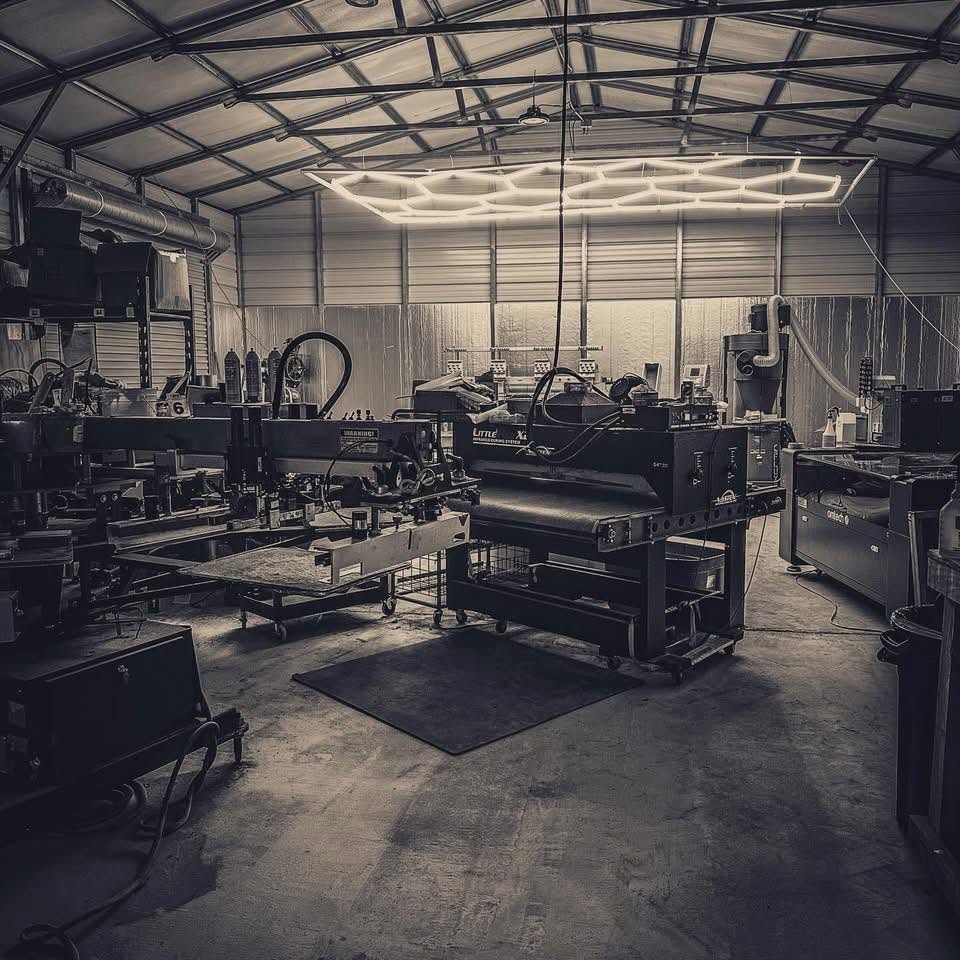
Built inside a working print shop. OBPrint came out of Bigfoot Designs, and we still run the shop on it every day. Read the story
Straight answers. If yours isn’t here, book a 30-minute demo.
On the job record, next to the screens, inks and notes, so anyone on the team can look back at it.
Yes. Machine status shows which presses are running, idle or queued.
No. The crew uses the shop computer, a tablet or a phone.
The Full Run. There is no separate charge for press tools.
Start with the next real job through the door. Short Run is free, and The Full Run is free for 14 days.
No credit card required for the Full Run trial.